
Movie Poster Credit Template for Photoshop
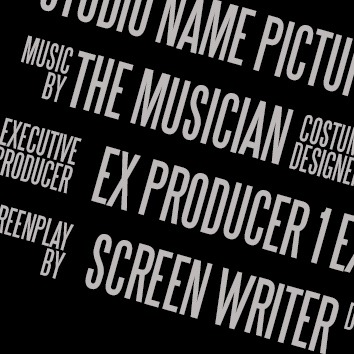 This week I was creating a simple movie poster for new students to experiment with in Photoshop. I wanted to have the credit block on the bottom of the poster for that extra ‘authenticity’ but was worried that changing font sizes and positions would get a bit confusing.
Imagine my delight when I came across this great font which has all the relevant parts incorporated into it. To get the ‘Music by’ or ‘Costume Design’ for example takes just a simple keystroke. Brilliant.
It can be a bit time consuming to format it all though, so once I’d structured it for my group I thought I’d pop it up here for you to use in your projects too. This is a basic credit panel but there’s more included in the font if you need them.
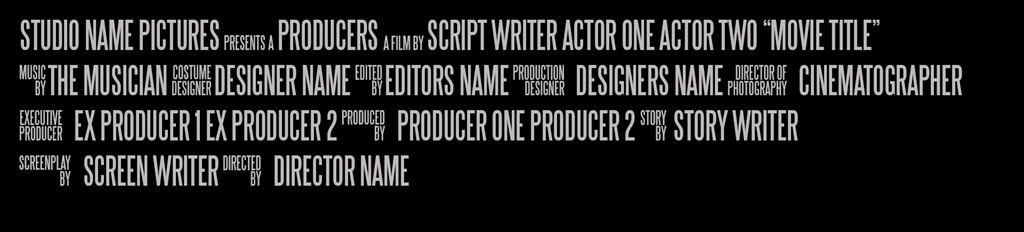
Just install the font and open the PSD. You can drag the Credits layer over to your own project. Remember, you can resize the font to match your own project. Enjoy!
The link to the download is in the locker. Just share on one of the social networks and its all yours!
Download Movie Credit Template Here


What is the trick please? Can’t seem to get it to work properly.
Thank you so much for this! =]
Thanks for posting it! This is exactly what I have been looking for, but it doesn’t seem to work with my version of Photoshop (CS3). 🙁
Thank you so much for this! 😀
You’re very welcome. Thanks for the thanks! We’d love to see what you do with it 🙂
Thank you so much for this I am going to have such fun with it.
Thank you. This was a lifesaver. What with my limited to nil abilities with Photoshop I was able to plug in all I needed and be done in minutes. I love you like a brother. You can sleep on my couch if you need- anytime!
Haha! You’re more than welcome. Thanks for the thanks, I shall mark the location of your sofa on Google Maps…. You never know!
Thank you! Saved me a lot of time!
Thanks for sharing!!!
Wow! this is a great resource for experiment. Thanks for sharing. 🙂
this is awesome
my photoshop does not have this fonts, how can I get them? thanks
The font is called SteelTongs and is part of the download 🙂
Thanks. just what i needed to help me in my media work.
Great news Jag. we’d love to see the results!
How do I use the ALT titles? I don’t think I’m doing it right. For example, I’m trying to get the lower lever PRODUCTION in there, so I hold down ALT and type 0191, but nothing happens.
Am I missing a step?
Aside from my boneheadedness, this is a fantastic resource!
I have downloaded and installed the fonts. When I open the PSD in CS6, I get one text layer with all of the text. What do I need to do to access the individual elements?
I am on a Mac Pro with Mountain Lion.
Hi Rod,
All the elements of the poster are part of the font. Try different letters using the Caps Lock.
I can’t seem to find the “a film by” element. Where exactly is that located?
Thanks!!! Real time saver. 🙂
Thank you so much! I’ve read all comments. I hope I can get the template work for my “Horror Movie Poster” assignment at school. Is there a way I can share with you my final piece? Cheers!
We LOVE to see what readers have done with our tutorials and downloads! We’re on the popular Social media sites (links to the right) but you can email us directly too, again, the link is in the panel on the right.
thank you so much!!!!!!
thank you for sharing
Thanks for putting this up. I’m making a t-shirt and have been looking everywhere for something like this
Thanks for this! #DONDA #revolutionary
THANK YOU KANYE
You’re very welcome, have fun.
Thank you for your help. >.<''
Great PSD, thanks
sweet! thanks
I can’t make the ALT+ ….. codes work? I will press ALT and a number but multiple titles will appear rather than, lets say, Mechanical design. How do I fix this? Am I doing something wrong?? I am working with a MacBook
Thank you so much for posting but I have no idea how to make it work…I might be overlooking something ;( I can not see instructions anywhere or what keys do what ;( bit frustrating….hrmmmm! ;O
Love the article on the template – looking forward to using it.
Is there any way to write “produced and directed by” in that font. It’s the only possible combination of options not on the list, and I can’t edit out the “by” underneath “produced by” in order to create this phrase. Thanks in advance.
where’s the file?
What’s up, I wish for to subscribe for this webpage to take
newest updates, so where can i do it please help out.
The RSS link can be found at the top of the page 🙂
You have to click one of the share buttons to unlock the file.
This is SOOO helpful! thank you so much!!
whats the name of the font?
Thank you, thank you, thank you, thank you! 😀
What font do I need to download for this??
Thank you so much for template, works perfectly on CS6.. Needed it for my Wedding Video.. Great stuff…
Thanks, Eric! Just what I needed to dress up a silly joke poster for a forum thread.
Thank you for this. Cannot open it with Photoshop CS3. Anyone else have a problem with that?
Rats!!!
How do you share the the download to a social network and how does that work Eric. I have the PSD zip file but it is not possible to share confused
This is cool and all, but I had a heck of a time figuring out that I had to type in all caps to enter a name into it. I’ve been struggling with Photoshop all day and I have to get this done so my brain really isn’t stretching much at the moment and I’m not terribly quick on the best of days so just a little plain statement would have helped… When the program has decided to screw you over at every step, typing the names and getting credits instead was just about the last straw.
Whats the name of the font? I don’t have it and can’t editing :/
Hi,
Thanks for this but how do you edit the small text there seems to be a typo? It says **** Presents a ***** a Film by ****** I want to take out the “a”. Thanks.
Awesome. Thanks!
is the font also your creation?
I cant be sure what the license agreement for the Steeltongs font is supposed to be…
thanks
-edg
Thanks so much, I was just looking for it for my uni assignment ! Awsome!
Thank you!! great help 😀
I need the term “music produced by”.
Also I need to know how to work all the commands on my Mac.
You’ve just saved me so much time May the bright light of Yahweh shine on you
This is wonderful Eric. Any chance you could add “Choreography By”? Thanks!
Sorry forgot a couple more…”SOUND DESIGN” “SOUND DESIGNER” “STAGE MANAGER”.
Thanks!!
A few more…..”SCENIC DESIGN” “SET DESIGNER” “LIGHTING DESIGNER” “LIGHTING DESIGN” “LIGHTING BY” “PUBLICITY BY”
where is the “starring” credit? Seems like an obvious one.
Wonderful! Many thanks!
Is there a way to change the billing titles to another language?
Best,
Fredrik
some people have to make a film credits for film long time go into film credits for someone who came and he has film credits
Hello Eric – this is fantastic! I used it to make credit blocks for fake movie posters for a film shoot. We gave you a shout-out and link on our Facebook page, Goodbye, Petrushka.
Thank you!
Wouldn’t it be better to include ALL of the punctuation in the font and have a template to make the smaller text? My title needs an exclamation point that your font does not have.
BRAVO!!
and thanks!