Author Archive for David Asch

David is an accomplished photo-montage artist and is well-versed in both Photoshop and Photoshop Elements. He is the author of How to Cheat in Photoshop Elements, now in its sixth edition, and has also contributed articles to several magazines and collaborative book titles. His aim is to dispel the myth that Elements is simply the poor relation of Photoshop, and that it’s capable of far more than colour correction and slideshows! You can see David's work in his 500px portfolio and can often find him on Twitter

Creating Torn Edges in Photoshop and Photoshop Elements

The finished image of the tutorial showing a torn playing card

This month I’m donning my top hat and tuxedo to perform a spectacular card trick for you. First, I’ll tear the card in half and then, without so much as a wave of a magic wand, I’ll seamlessly mend it right in front of your very eyes!

Seriously, though, if you’ve ever gone delving into the many filters available in Photoshop and Photoshop Elements, you will no doubt have come across the Torn Edges filter. As the name suggests, it will give you a super torn edge effect on your image. Well, no, actually it won’t, not if it’s applied directly to the image, that is; all you’ll end up creating is a fuzzy monochrome graphic element.

Creating a Glittery Text Effect in Adobe Photoshop

The completed glittery text image

Inspiration often comes from things we’ve seen as we go about out day-to-day business; posters, TV and printed ads, etc. I was in town the other day and noticed a poster in a bus shelter for a soft drink. The ad headline featured a fancy glittery text effect. I took a photo with my phone for reference and set about seeing what I could come up when I got back to the computer. I wanted to make sure it was easy to create and versatile enough to apply in different situations.

Working with Smart Objects and transformations in Photoshop CS6

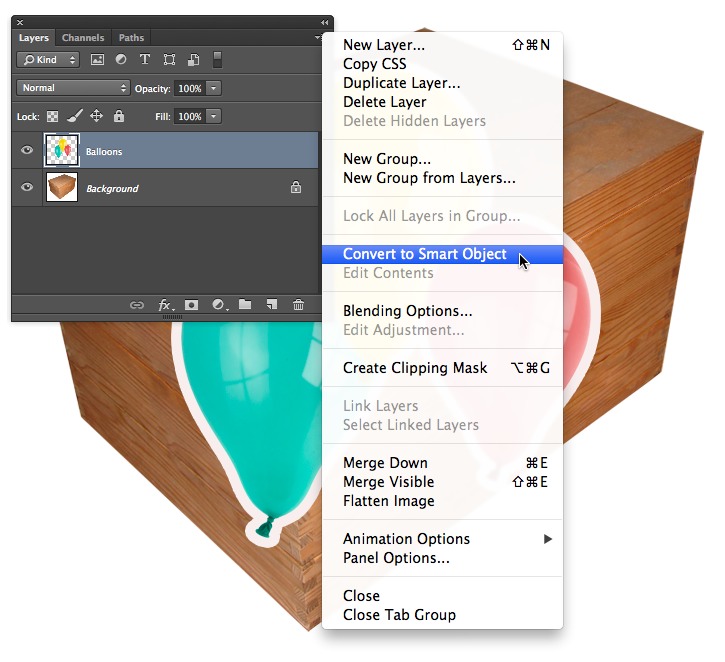
Image showing the Layers menu with Convert to Smart Object highlighted

This month I thought I’d highlight a feature of Smart Objects in Photoshop and, to an extent, Photoshop Elements that often gets overlooked. Aside from the ability to scale and distort layers without loss of quality and change the contents simultaneously across multiple copies, another useful trait is that they remember the previous distortion settings; image warp in particular. This is incredibly useful for designers, as it makes it far easier to experiment with idea or creating photo montages, where objects need to be placed into a scene in perspective

Creating a Chiseled Text Effect in Photoshop and Photoshop Elements

Completed carved text image

We’ll be using Photoshop layer styles to achieve the effect as well as the somewhat obscure Type Mask tool. If you’re not familiar with this tool, it’s a little like a cross between the Type tool and Quick Mask; we can type our text as usual but when it’s committed, instead of creating a layer with the text it creates a selection; this is perfect for the technique as we do not need to work on the text directly. You can follow the original tutorial using the link above but change the dimensions to 1000×200 pixels to create the correct document size. If you don’t want to start the image from scratch, it can be downloaded here.

Creating a Marble Texture Effect in Photoshop and Photoshop Elements

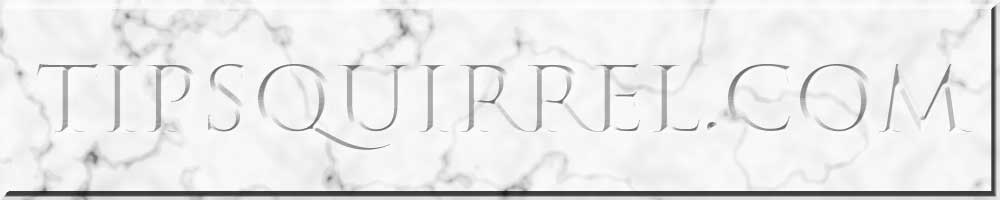
Header image with the TipSquirrel site name chiseled into a marble texture

In this tutorial we’re going to conjure a marble-style texture in Photoshop and Photoshop Elements. This can be used for anything from 3D textures to creating a fancy background for a web banner; as we have done here.

The effect hinges around the Clouds filter; yes, the highly versatile filter that’s great for creating anything other than clouds. By combining this with further filters, adjustments and layer blend modes, we can achieve a fairly realistic texture quickly and easily. Let’s get started.

Tricky Cutout? Grab a Photoshop Pencil!

Screen grab showing the selected areas viewed on black using the Refine Edge dialog

Photoshop has a powerful set of selection tools that can handle almost any cutout you care to throw them at. Occasionally, however, we’re faced with an image that foxes the likes of the Quick Selection Tool and can be mind-numbing and laborious to select with the Pen or Lasso tools.

Back From the Brink: The Awesome Power of Lightroom 4.

tsq_lightroom_recovery_7_thumb.jpg

We all have photographic mishaps from time to time; many of them are only minor, thankfully. Sometimes, however, they can be real howlers and that can be frustrating, especially if they were shots that are not easy to recapture.

In this article we’re going to be looking at an example of a very underexposed image, that, ordinarily we would consign to the trash without a second thought. Before we stab at the delete key, however, let’s see what we can do in the Develop module of Lightroom 4; you will be pleasantly surprised!

Photoshop Elements Books Winner

CheatInPSe

No nonsense guide to getting the most out of your images using Photoshop Elements. Save time with invaluable shortcuts and tips to cut through unnecessary steps, helping you to work faster and smarter. With thanks to Photoshop Nut David Asch…

Using actions in Photoshop Elements

TSQ-Effects-panel_thumb.jpg

If you haven’t used the full version of Photoshop, you might not be familiar with the concept of actions. Essentially, they are sequences of commands designed to quickly reproduce a particular effect on an image. They range from simple enhancements to extremely complex manipulation operations and are designed primarily to save you time by doing all the repetitive parts of a technique at speed.

Although you can’t actually create your own actions from within Elements, you can install and run them.